> For the complete documentation index, see [llms.txt](https://docs.oort.io/llms.txt). Markdown versions of documentation pages are available by appending `.md` to page URLs; this page is available as [Markdown](https://docs.oort.io/integrations/bloodhound-enterprise.md).
# Bloodhound Enterprise
2026.07.28 - Learn how to prioritize investigation and remediation around identities that are positioned along high-risk paths.
{% hint style="info" %}
## This integration is currently in Beta release phase.
{% endhint %}
### Overview
Identity Intelligence integrates with BloodHound Enterprise to ingest attack path findings and related identity exposure insights. This enables Identity Intelligence to help identify users that appear on identity-based attack paths—paths that represent sequences of relationships and permissions an adversary could abuse to escalate privileges or reach high-value assets (for example, by chaining group memberships, delegated rights, and administrative roles).
### Requirements
To complete this integration, you must have Administrative access to BloodHound Enterprise to generate API credentials.
You must also have administrative access to your Identity Intelligence tenant.
### Get Your Bloodhound Domain
You can find your BloodHound Domain by:
* Checking your BloodHound Enterprise welcome email or onboarding documentation
* Contacting your BloodHound administrator
* Looking at the URL in your browser when logged into BloodHound Enterprise
### Create a BloodHound Enterprise API Token
In BloodHound Enterprise, navigate to Settings (gear icon) > Administration > Users > Manage Users.
You can generate an API token under your own user account if you have admin privileges, or, as a best practice, create a dedicated service user account—such as "cii\_svc"—with admin rights specifically for integration with CII.
To generate the token, locate the user account intended for integration, click the three-dot menu next to that user, select "Generate API Token," provide a name for the token, and copy the displayed Token ID and Token Key.
For more detailed guidance, refer to the BloodHound Enterprise product documentation.
{% hint style="info" icon="exclamation" %}
The Token Key is shown only once. If you lose it, you must revoke the token and create a new one. Store these credentials in a secure location.
{% endhint %}
**Note**: For security, Cisco recommends using the least privileged token that still allows the integration to function.
### Configure the BloodHound Enterprise integration in Identity Intelligence
1. In Cisco Identity Intelligence, go to Integrations.
2. Click Add Integration.
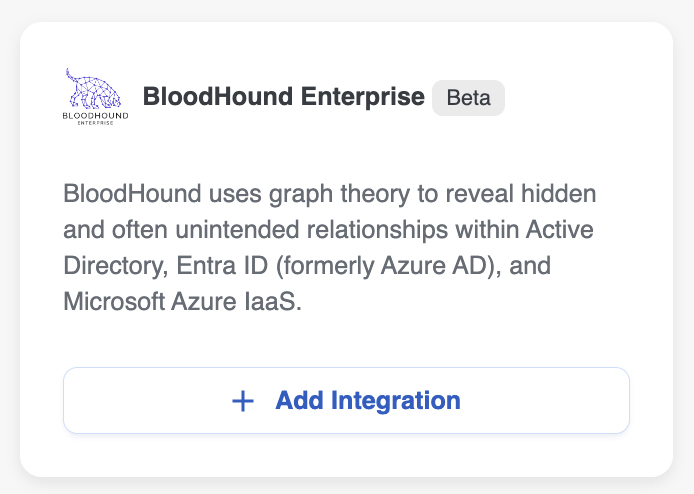
3. For BloodHound Enterprise, click **Add Integration.**
1. In General Settings, enter:
1. **Name** for this integration instance.
2. **BloodHound Domain**: Your BloodHound Enterprise domain name.
3. **Token ID:** API token ID you found earlier.
4. **Token Key**: API token key you found earlier.
2. Click **Connect**.
3. To verify the connection, open the integration’s 3-dot menu and click **Test Connectivity**. The message `Connected!` displays to indicate that everything is working.