> For the complete documentation index, see [llms.txt](https://docs.oort.io/llms.txt). Markdown versions of documentation pages are available by appending `.md` to page URLs; this page is available as [Markdown](https://docs.oort.io/dashboard/posture/devices-dashboard.md).
# Devices Dashboard
The Devices dashboard provides insights and key metrics about the devices present in your environment based on the data Identity Intelligence receives from your connected Identity Sources. This data can be used to identify device clean up opportunities, surface device hygiene gaps to address, provide insight into the impact of an organization wide policy change, and more.\
\
This article provides details on each of the sections or widgets, specifically available in the **Devices** dashboard.\
\
Please refer to the high-level [Dashboard](/dashboard.md) documentation for information on functionality that is available on every Dashboard pages, such as exporting widgets or raw data, customizing the dashboard pages, sharing links or PDFs, etc.
The Devices dashboard displays metrics and visualizations on areas of interest including:
* [Shared, orphan, and stale devices by Source](#shared-orphan-and-stale-devices-by-source)
* [Device Metrics](#metrics)
* [Devices by Source](#devices-by-source)
* [OS Status](#os-status)
* [Outdated Devices by Endpoint Type](#outdated-devices-by-endpoint-type)
* [Managed Devices Usage](#managed-devices-usage)
* [Stale Devices Count](#stale-devices-count)
* [Devices by Type](#devices-by-type)
* [Operating System Usage](#operating-system-usage)
### Shared, Orphan and Stale Devices by Source
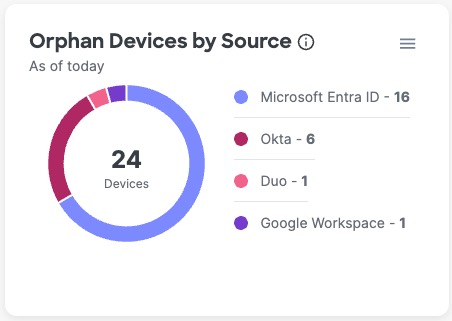
These 3 pie charts display similar information and provide similar options. All pie charts show the total number of devices in the center with a breakdown of the number per identity source.
Definitions:
* Shared Devices by Source: Number of devices that are assigned to or used by more than one user as detected by each identity source
* Orphan Devices by Source: Number of devices not associated with any user detected by each identity source.
* Stale Devices by Source: Number of devices not associated with any user *and* 90 or more days inactive per identity source.
Example:
### Metrics
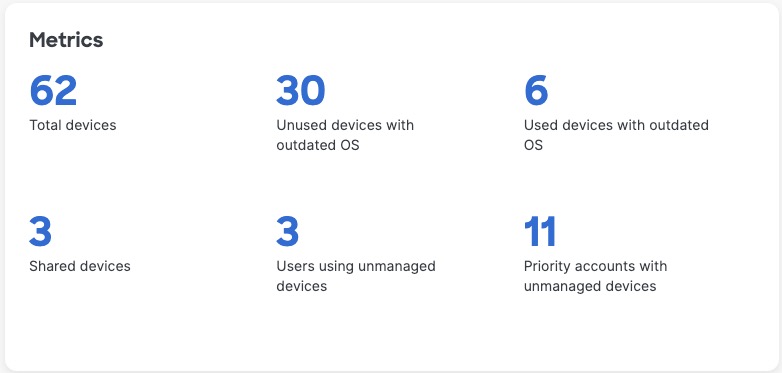
Provides high level counts and insights, including the total number of devices and the number of devices in the indicated categories. Select either the number or the text to navigate to the [Devices tab page](/devices.md) , pre-filtered on your selection, to view more details.
### Devices by Source
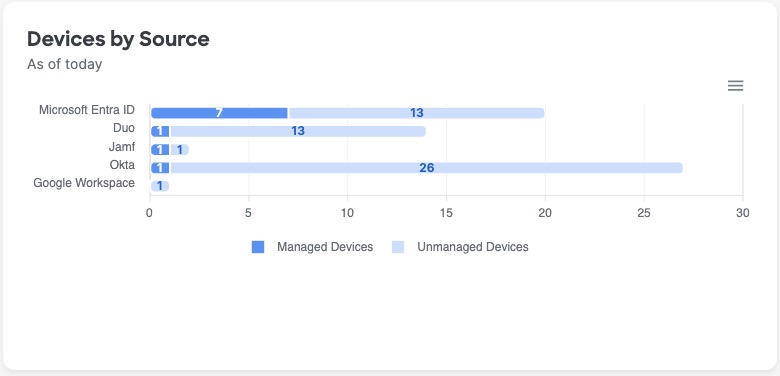
The current number of devices per identity source, divided into [managed and unmanaged devices](/devices.md#devices-table-elements).
Selecting any of the segments in the bars of this visualization will take you to the Devices page, pre-filtered for the Source and Device status (managed/unmanaged), so you can see all the devices that currently make up that segment and take action accordingly.
### OS Status
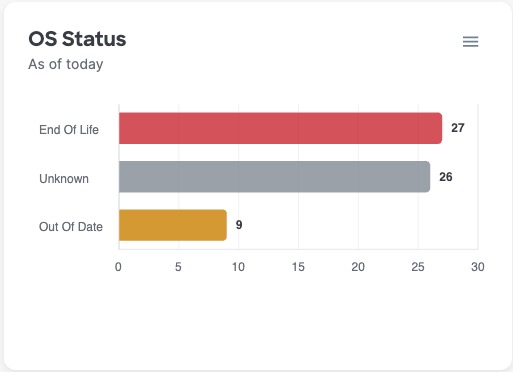
Devices that are running operating systems (OS) versions that are End of Life or Out of Date introduce risk to your organization as they can have security vulnerabilities that bad actors can take advantage of. You should contact the assigned users of these devices immediately to upgrade their OS, or remove the device record from your systems if it is not associated with any users. Your organization should also implement access policies to block the device from connecting to your organization's network or resources.\
\
This widget shows the total number of devices per current operating system status:
* End of Life: Operating system version that is longer supported, maintained, or patched by the vendor
* Out of Date: Operating system version that is missing critical patches
* Supported: Operating system version that is still maintained by the vendor
* Latest: Operating system version that is the most recently released by the vendor
* Unknown: Identity Intelligence couldn't determine the operating system version, and therefore the status\
\
Selecting one of the bars in this visualization will take you to the Devices page, pre-filtered for the chosen OS Status, so you can see all the devices that currently make up a particular segment and take action accordingly.
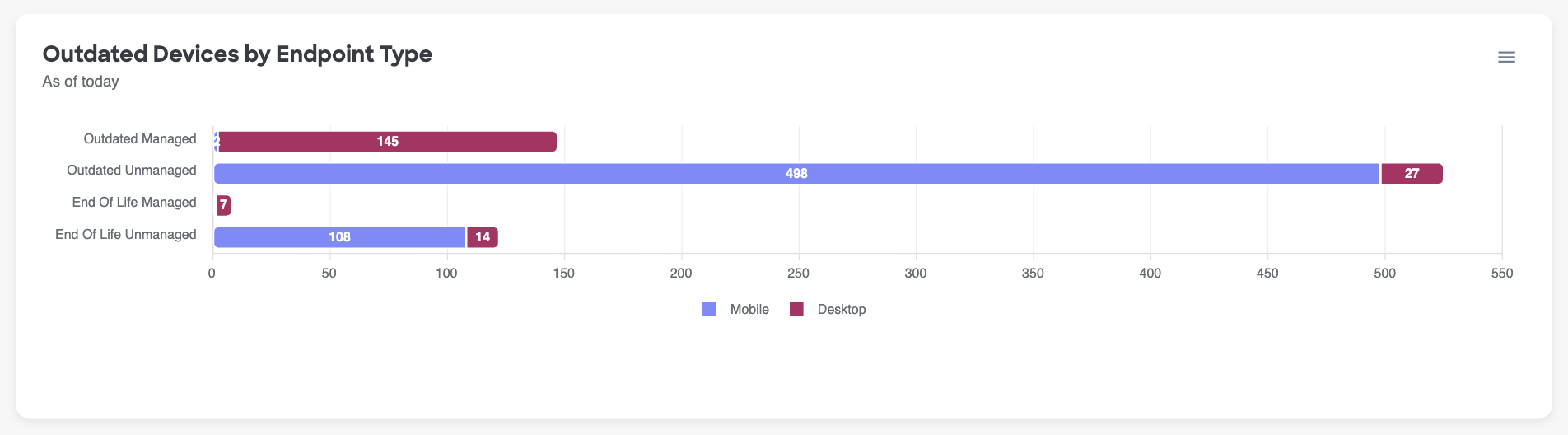
### Outdated Devices by Endpoint Type
*Endpoint type* means either desktop or mobile. Managed is described in [Devices](/understanding-your-users/user-360/devices-tab.md#devices-table-elements).
Number of devices whose operating system is outdated according to the vendor, broken down and grouped by:
* End of Life Managed devices
* End of Life Unmanaged devices
* Outdated Managed devices
* Outdated Unmanaged devices
Selecting any of the segments in the bars of this visualization will take you to the Devices page, pre-filtered for the chosen OS Status, so you can see all the devices that currently make up a particular segment and take action accordingly.
### Managed Devices Usage
If your organization is working on rolling out Managed Devices, enforcing managed device usage, or working on cleaning up unmanaged device access, this widget will make it easy to track adoption and visualize the progress made over time so that it is easier to understand and communicate the improvements made being made by this effort.
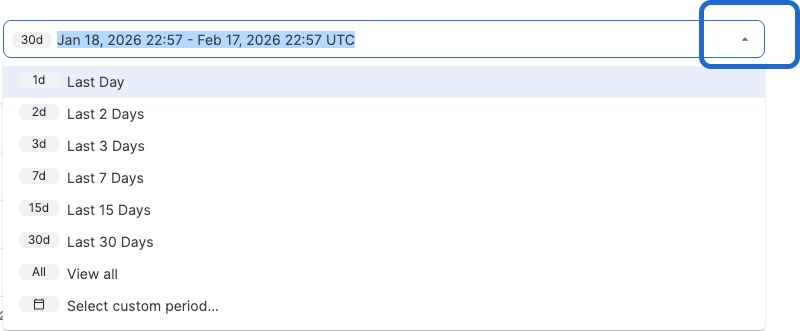
This widget looks at device usage to track the total number of managed devices compared to unmanaged devices, that have been used over time. To change the time period, select the timeframe filter in the top right corner of the widget and follow the prompts on your screen.
### Stale Devices Count
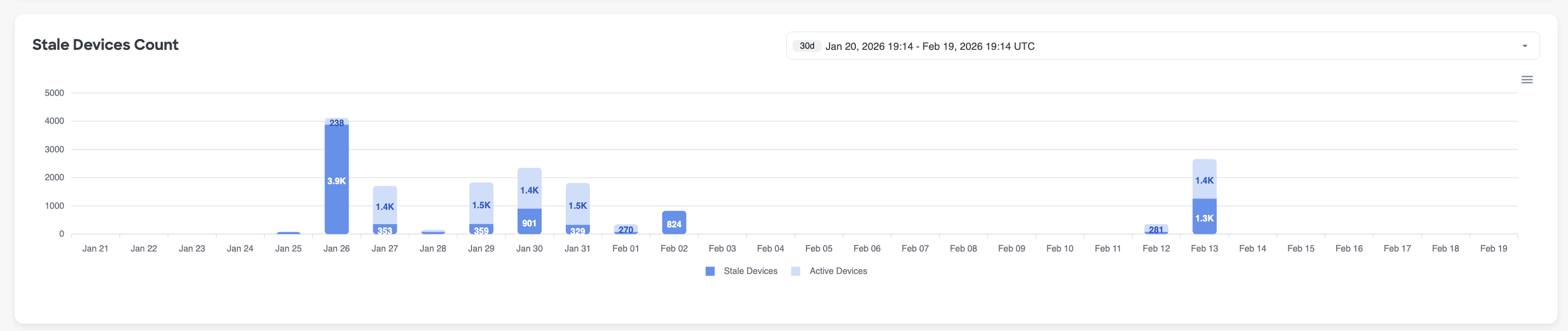
Similar to the "Managed Devices Usage" widget, the Stale Devices count aims to help your organization understand and visualize the progress that is being made with cleaning up stale devices in your environment.
A *stale* device is not associated with any user *and* has been inactive for 90 or more days as determined by the identity source. Number of managed and unmanaged devices by day. To change the time period, click the list and follow the prompts on your screen.
This widget compares the total number of stale devices to active devices seen in your environment, over time. To change the time period, select the timeframe filter in the top right corner of the widget and follow the prompts on your screen.
### Devices by Type
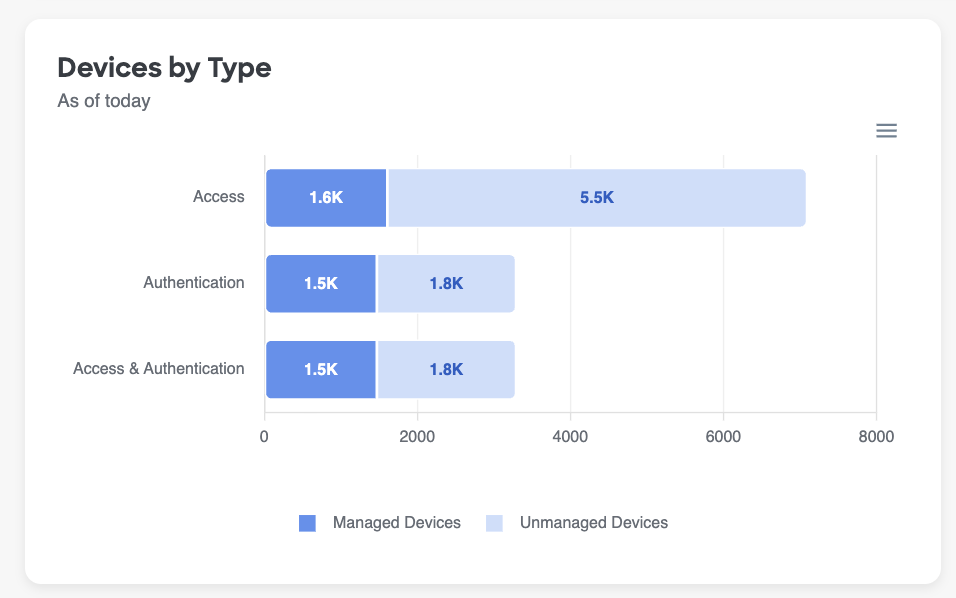
The current number of managed and unmanaged devices broken down by Device Type:
* Access: Typically a computer.
* Authentication: Typically a mobile device that must be enrolled using an app like Duo Push.
* Access & Authentication: A device that can be used for both access and authentication, such as a laptop with a biometric, fingerprint scanner that is enrolled as an MFA factor
Selecting any of the segments in the bars of this visualization will take you to the Devices page, pre-filtered for the chosen Device Type and Managed Status, so you can see all the devices that currently make up a particular segment and take action accordingly.
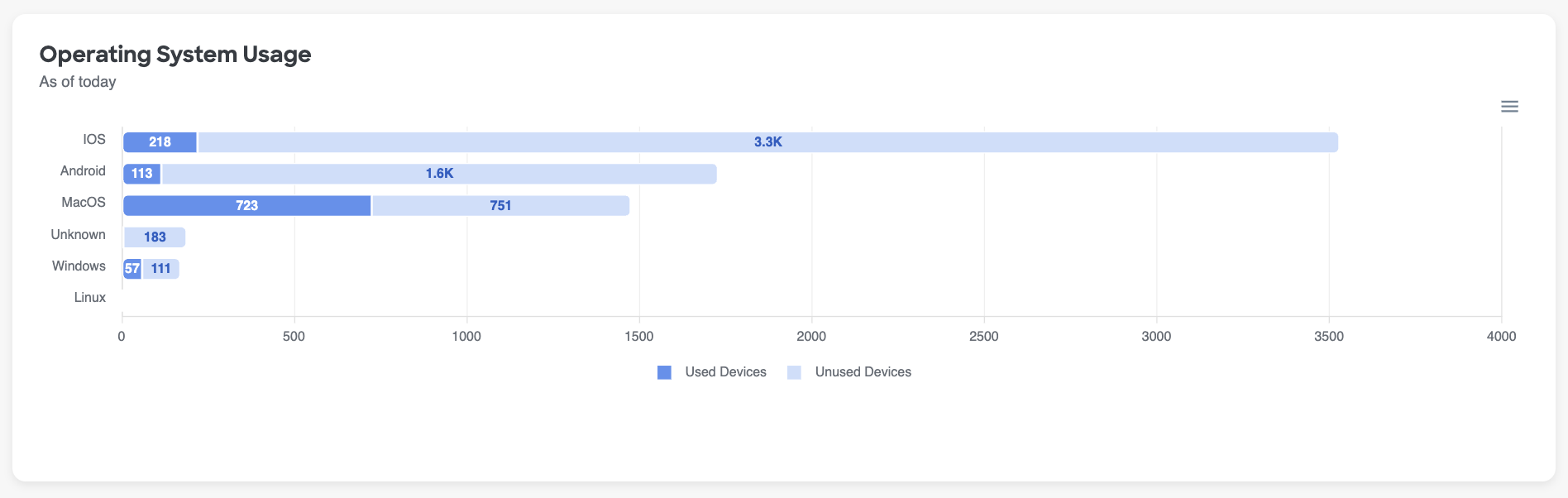
### Operating System Usage
A comparison of used and unused devices, per type of operating system.
Selecting any of the segments in the bars of this visualization will take you to the Devices page, pre-filtered for the chosen OS Type and usage status, so you can see all the devices that currently make up a particular segment and take action accordingly.